

Venues are the stadiums, arenas, and fields where games take place. Creating venues allows you to display location information on game pages and team profiles, including addresses, maps, and facility details.
🚀 Creating a Venue
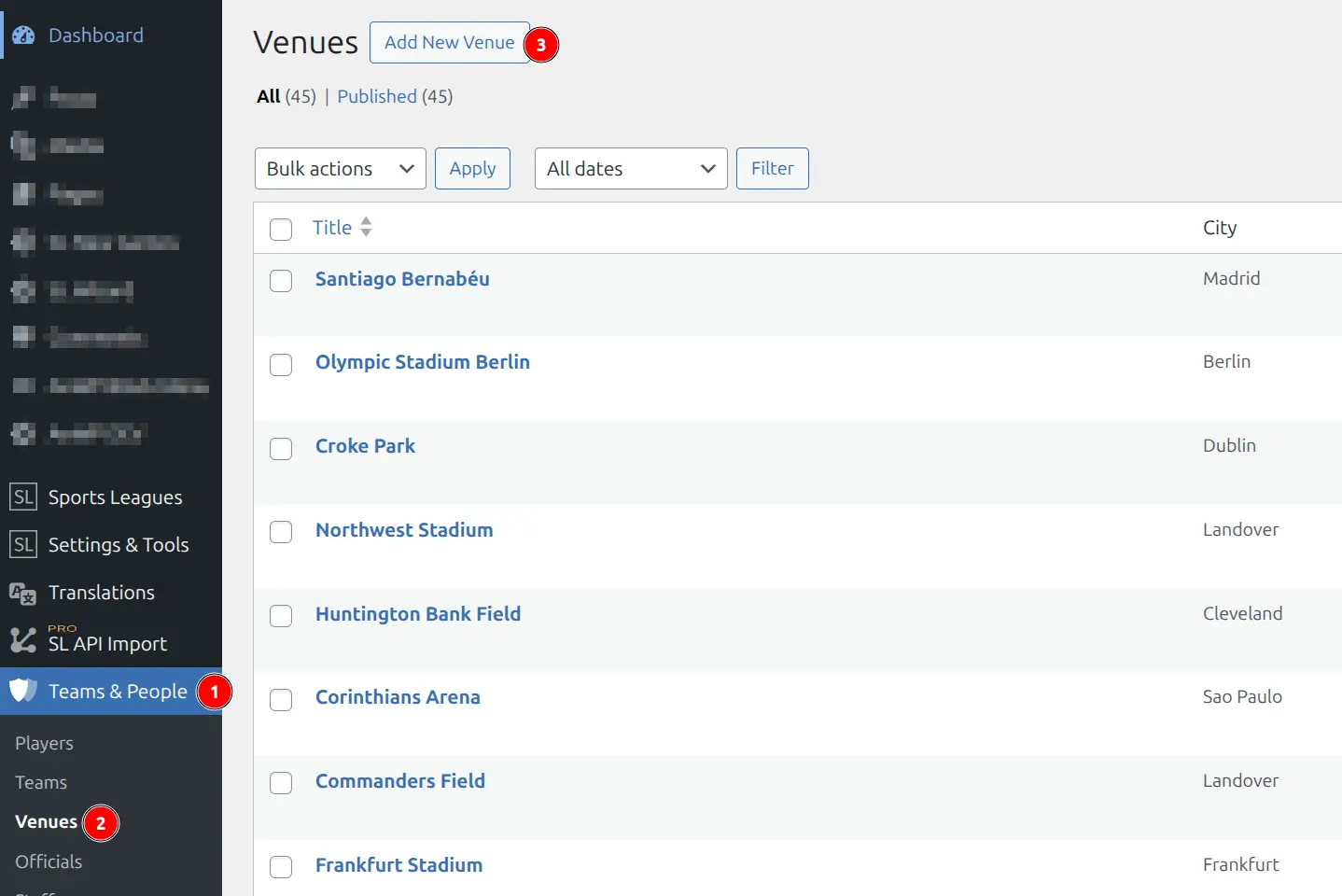
- Go to Sports Leagues > Teams & People > Venues
- Click Add New
- Enter the venue name
- Fill in venue details across the tabs
- Set a Featured Image (venue photo) in the sidebar
- Click Publish
📝 Venue Data Tabs
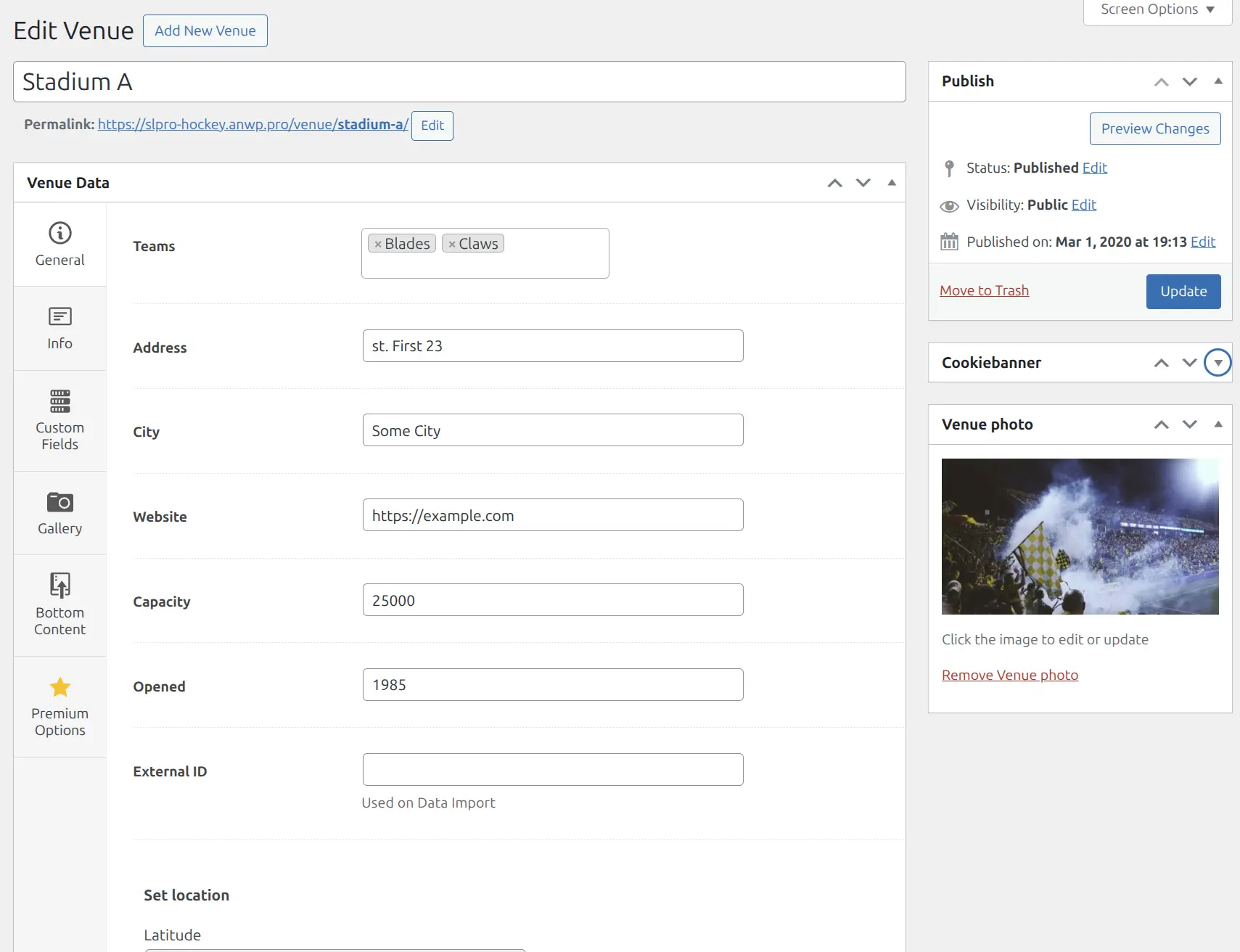
The venue editor is organized into tabs for easier navigation:
General Tab
| Field | Description |
|---|---|
| Teams | Select teams that use this as home venue |
| Address | Street address |
| City | City location |
| Website | Venue website URL |
| Capacity | Seating capacity |
| Opened | Year opened |
| External ID | ID from external systems (for data import) |
| Map | Interactive Google Maps location |
Info Tab
Full venue description with rich text editor. Add history, facilities, transportation info, and other details.
Custom Fields Tab
Add custom data fields configured in Sports Leagues > Settings > Custom Fields. Useful for venue-specific data like parking info, accessibility features, or concession details.
Gallery Tab
Add multiple photos to create a venue gallery. Include exterior shots, interior views, seating areas, and facility amenities. Optionally add descriptive text below the gallery.
Bottom Content Tab
Add content that appears at the bottom of the venue’s public page. Supports shortcodes for embedding related content like upcoming games or team lists.
🔗 Linking Venues to Teams
There are two ways to link venues and teams:
- From the Team — Edit team > General tab > select Home Venue
- From the Venue — Edit venue > General tab > select Teams
Both methods create the same relationship. The venue appears on team pages and in game location displays.
🌐 Venue Frontend Display
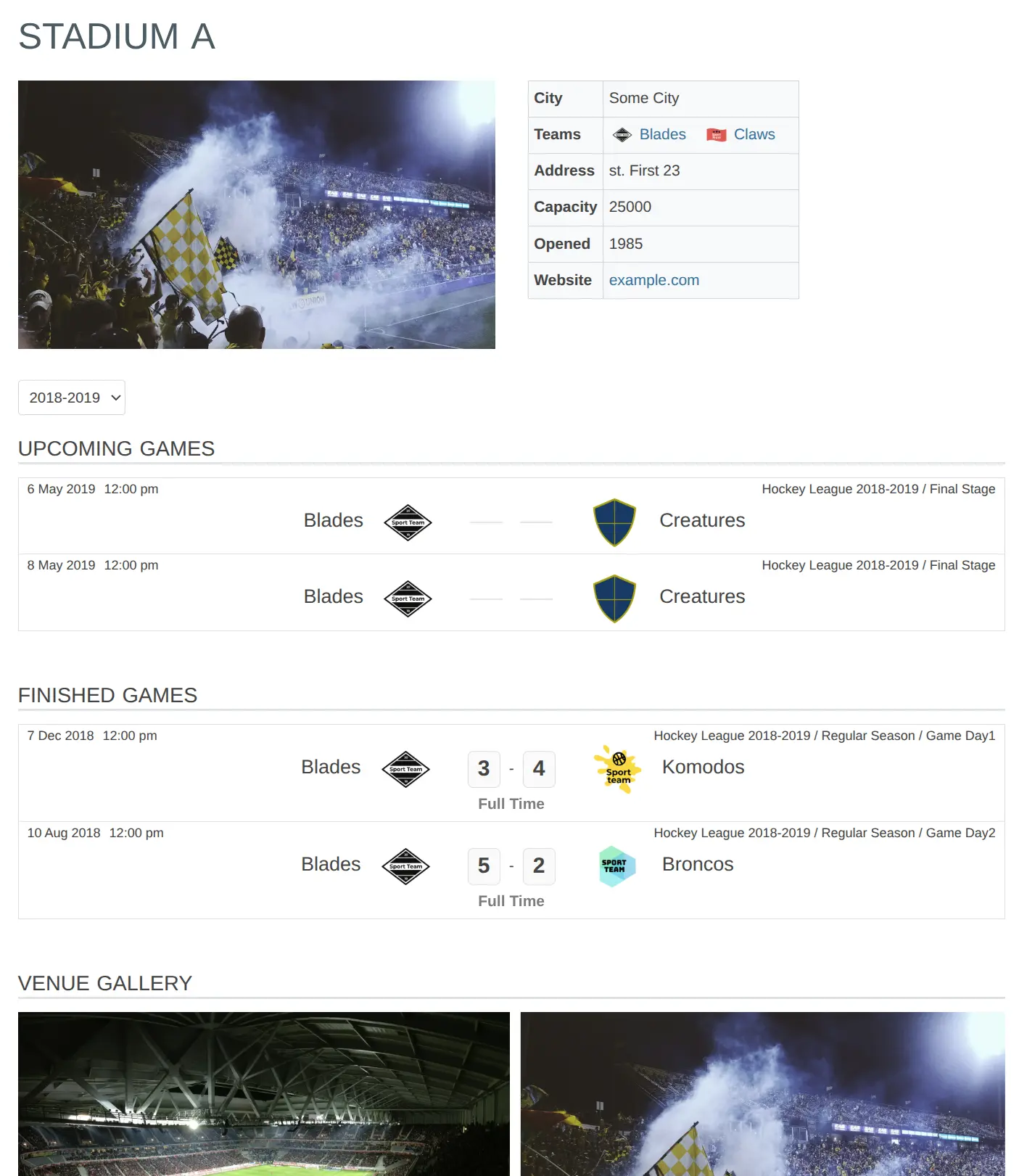
Each venue has an automatically generated public page showing:
- Venue photo and name
- Location details (address, city)
- Capacity and opening year
- Interactive map
- Teams using this venue
- Description and gallery
🏟️ Venues in Games
When creating games, you can select a venue for each game. This is useful for:
- Neutral site games — Games not at either team’s home venue
- Tournament finals — Special venues for championship games
- Alternate venues — When a team temporarily uses a different location
If no venue is selected for a game, the home team’s venue is displayed by default.
Tip
Use the Import/Export Tool to bulk import multiple venues at once from a spreadsheet.
📚 Related Documentation
- Teams — Create teams and assign home venues
- Import/Export Tool — Bulk import venues
- Permalinks Settings — Customize venue URLs